September 11, 2026
This guide is for the Technicolor DGA0122 router. Click here to view the setup guide for the TP-Link VX230v router
Getting your broadband router up and running is easier than you might think. In this guide, we’ll walk you through the process of setting up your router, ensuring a smooth and reliable internet connection.
Router setup video
For a detailed visual walk-through, be sure to watch the video below. It covers everything you need to know, from unpacking your router to connecting your devices.
Need help connecting your router or setting up wireless connectivity? We’ve got you covered. Click here
Below you’ll find quick-start guides that will walk you through the process step by step. These guides make it simple to get your router up and running so you can start enjoying your internet connection in no time.
Router setup guide
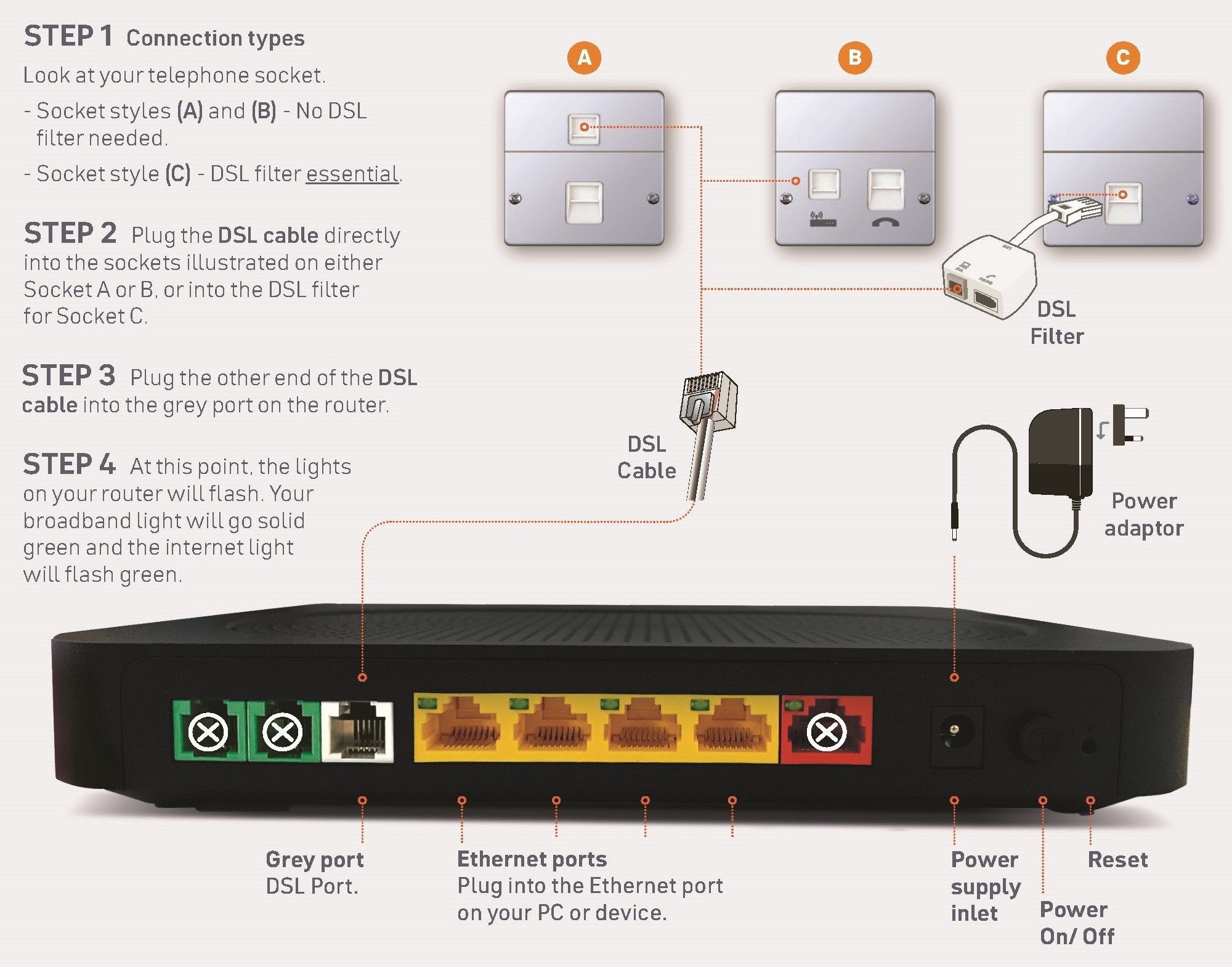
To get up and running, plug in your router and follow these steps. Before you start, check which type of telephone socket you have by looking at the diagrams below.
Setting up wireless connectivity
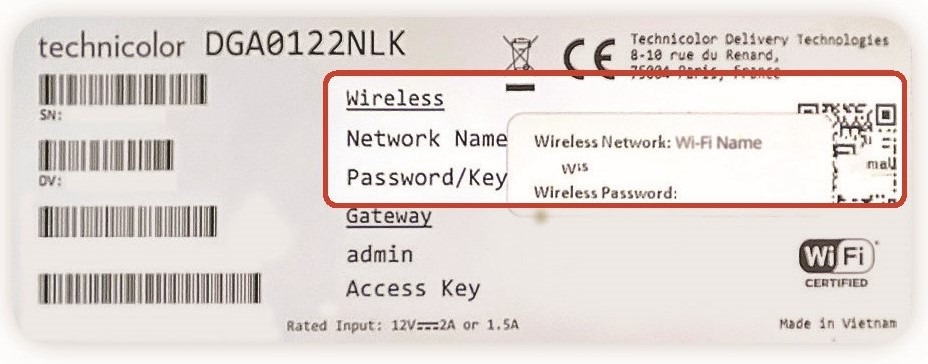
First thing’s first: your wireless settings are underneath your router.
Connecting all your devices to your new connection is easy.
Just follow these simple steps:
- First, check the WiFi light on the router is on
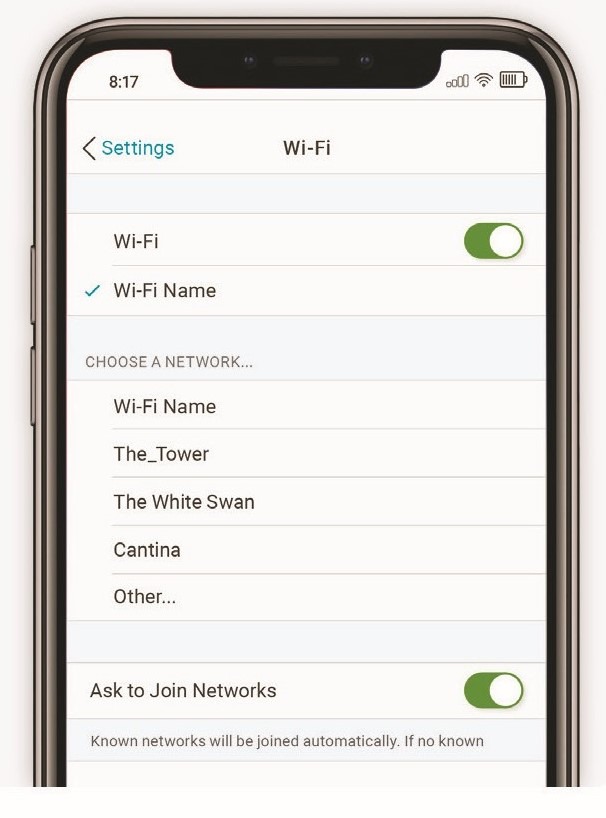
- Using your wireless enabled device like a laptop, smartphone or tablet, search for your available wireless networks
- From the list of available wireless networks, select the specific ‘WiFi Name’ found on your wireless settings sticker underneath your router and then enter your unique password found on the same sticker.