
September 10, 2026
If you’re experiencing an issue with your single or multi line, such as noise or no dial tone, you can conduct a line test through our MyAccount portal. This may help to determine whether the issue is internal, i.e. within your equipment, or within the Openreach network.
You can then log a fault ticket with our UK based incident management team, who work 24/7 to make sure your services are back up and running as quickly as possible.
Line tests are used as a guide only and may not be 100% accurate. A line test will not give a result for an ISDN line
Conducting a line test
To log in to the portal, click here
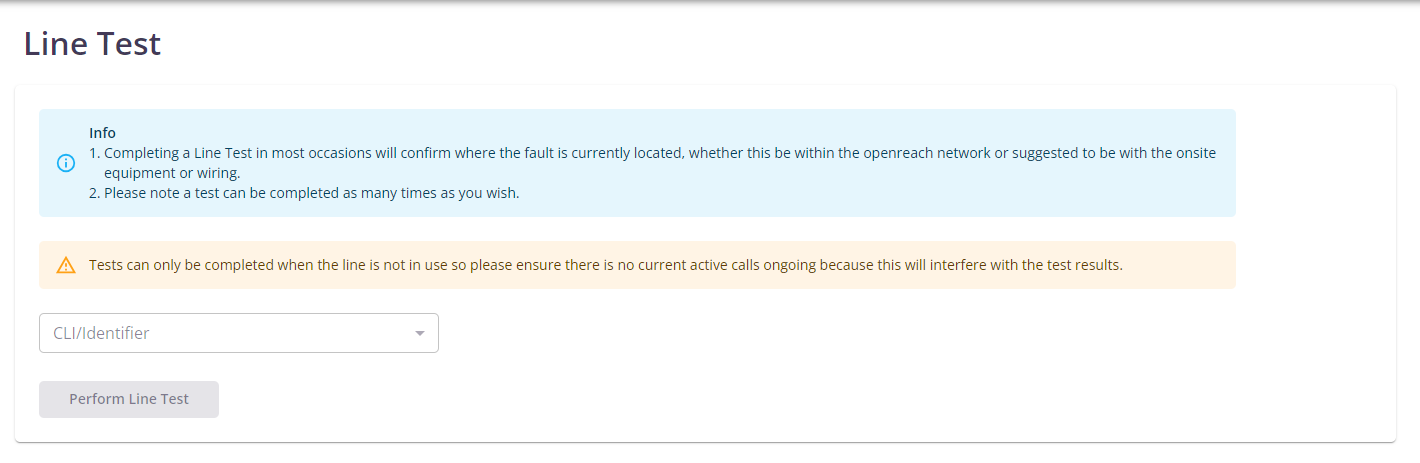
Once you have successfully logged into the MyAccount portal, click Support and then Line test on the left-hand menu.
From here, select your CLI (phone number) from the dropdown list. Then click Perform line test. As stated in the yellow warning box, please make sure there are no current active calls ongoing.
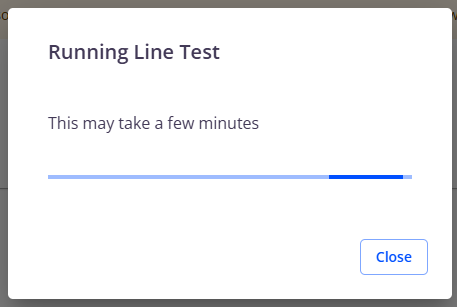
The following message will appear:
Once the line test has completed, the result will be shown:

In this instance, no fault has been found on the line itself, so we’d suggest doing internal checks. If you’ve carried out internal checks and you’re confident there are no internal issues, you can log a fault ticket.
If a suspected fault has been found within the network, this will show as Line test failed, along with the reason, and you can again log this as a fault with us.
In any instance, we would advise doing internal checks as a precaution.
Logging a line fault
Once you have logged in to the My Account portal, click Support and then Tickets in the left-hand menu. Once the page has loaded, click Create new ticket in the top right corner. Select Fault as the Request type.
Fill in the boxes with as much information as possible. If your existing contact number is the phone number you’re experiencing a fault on, please leave an alternate contact number in the description box.
If you need us to put a call divert in place, please let us know the number you’d like to divert to. Please note, the diverted part of the call is chargeable.
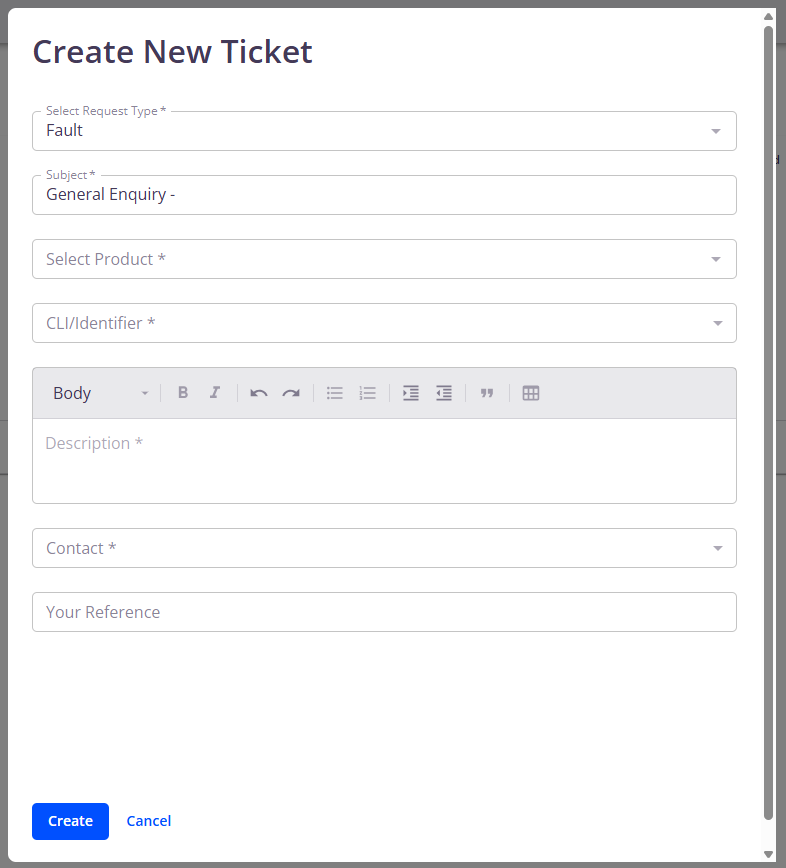
Once you’ve filled the information in, click Create. The ticket will now appear on the Tickets screen.
Once you’ve submitted the ticket, you can view the details by clicking View next to the relevant ticket. You can also add a note if there is anything else you need to tell us.
Our 24/7 incident management team will then be in contact with you as soon as possible to get your services back up and running.
