
September 9, 2026
Contacts listed on your account are authorised to reach out to us on behalf of your business. So we can provide timely support, it’s essential to keep this list up to date.
You can easily manage and update your contacts through our MyAccount portal, where you can assign different levels of access as needed.

To add a contact on the MyAccount portal, first you’ll need to log in.
Click the Account management menu option, then Manage contacts.
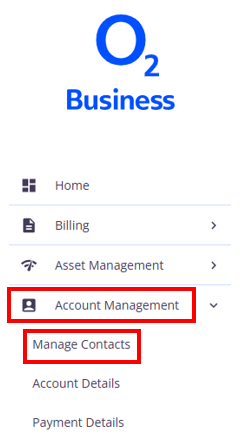

If you don’t see this in the left-hand menu, please contact your administrator as you do not have the required permission.
A list of current contacts will appear. Click Add contact in the right-hand corner.

You’ll then be prompted to enter the following details for the user:
- First name
- Last name
- Contact number
- Mobile number
- Email address
- Contact type (this will determine the level of authority they have over the account)
After populating the fields, click Submit. The new contact will now be able to discuss account details with our agents, depending on contact type.
You can also delete contacts if needed, such as people who’ve left your company
